
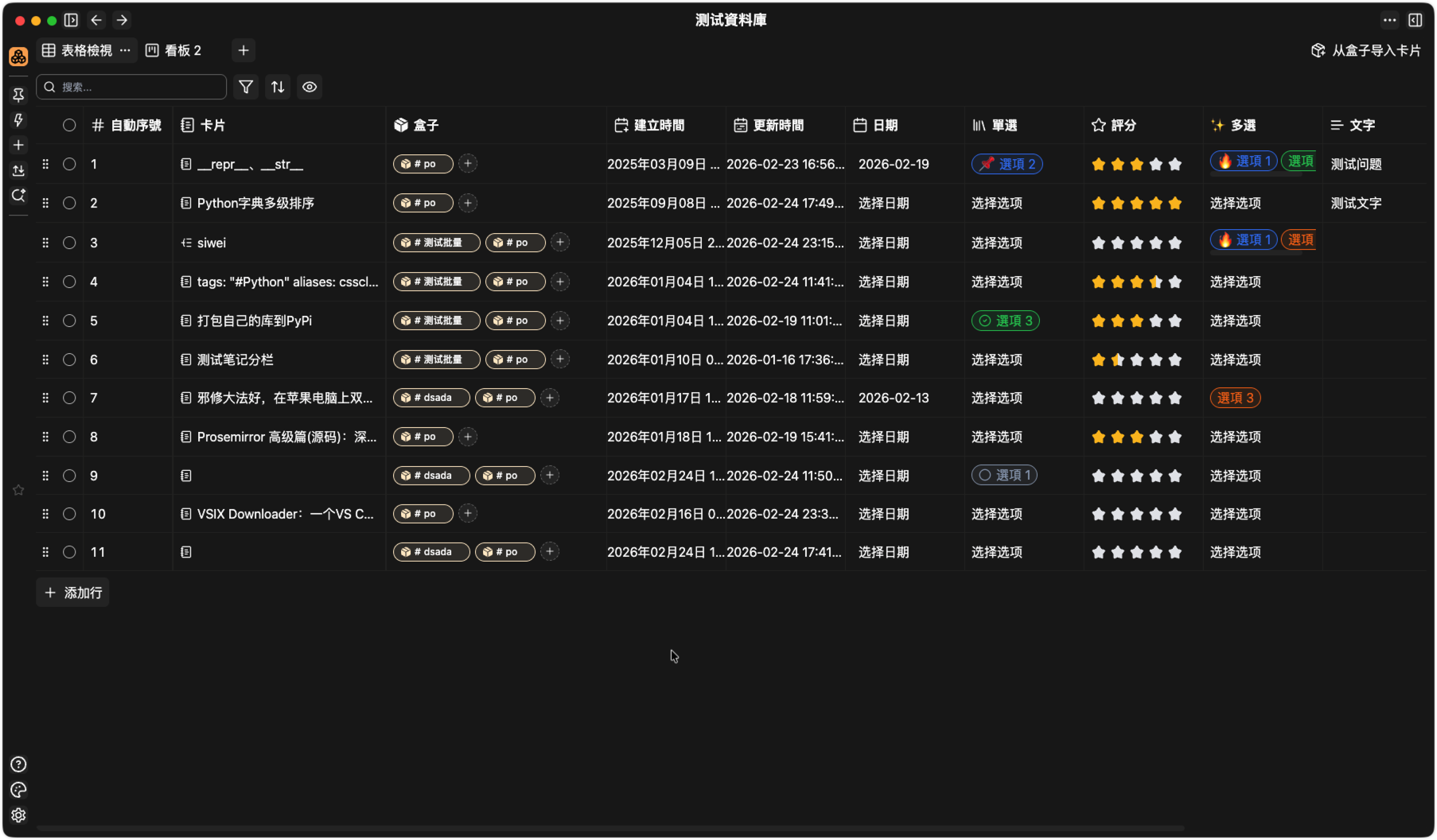
A Collection (Database) card lets you organize, filter, and link cards in a table or kanban layout. Each row represents one card; columns define properties like title, type, date, and relations—ideal for lists, project boards, or knowledge bases.
Creating a Collection
- Click the
+icon in the top-left menu, then select Collection (Database) to create one.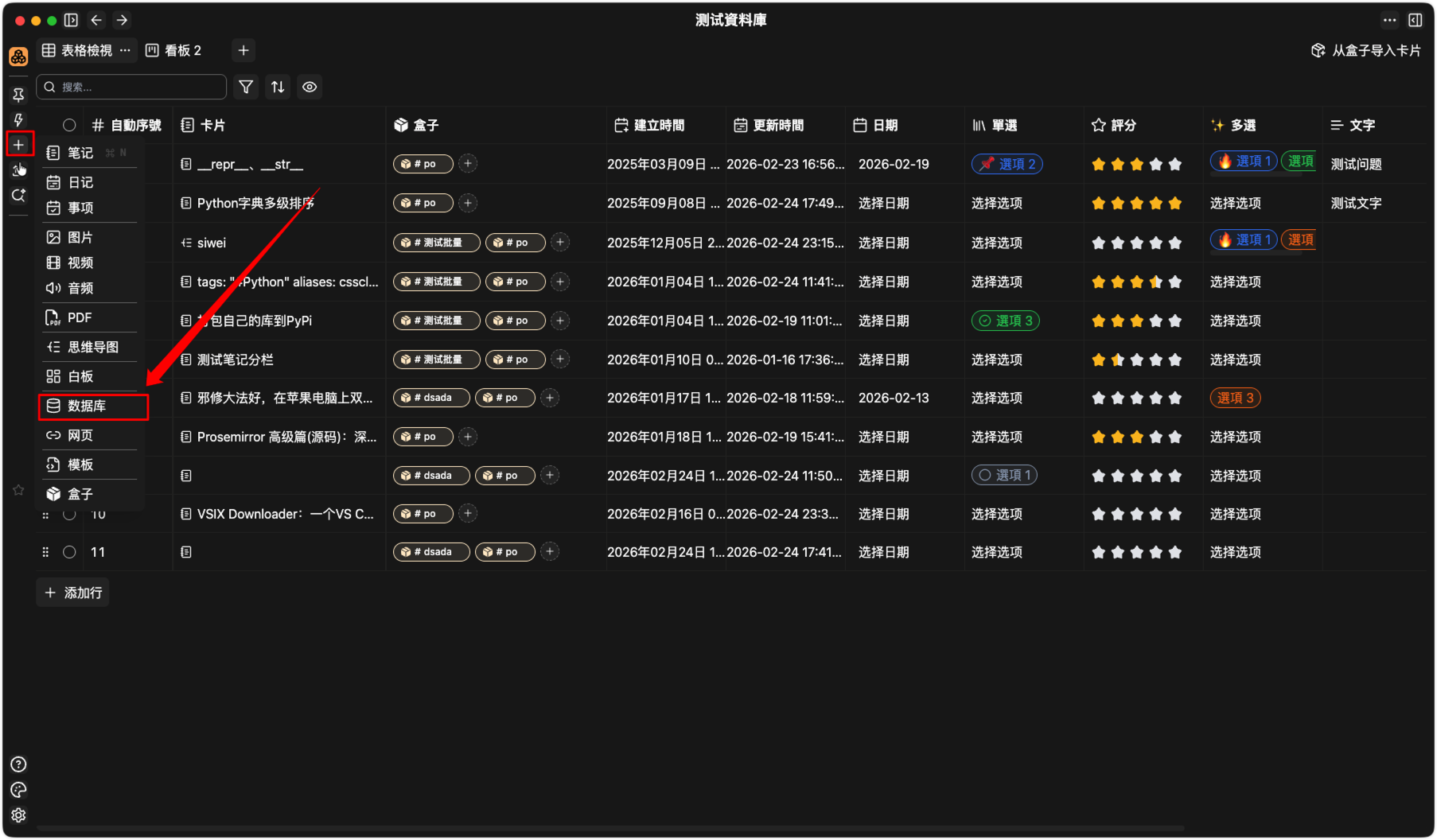
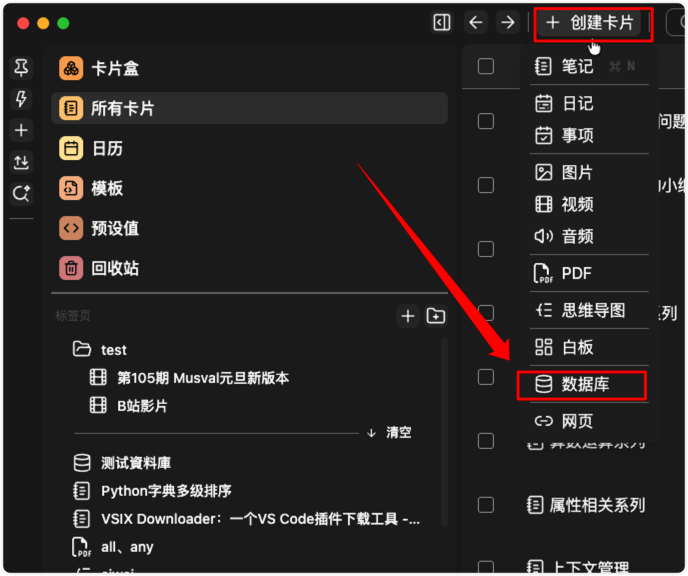
- On the card list page, click Create Card, then choose Collection (Database).
Views
A collection can have multiple views that you can switch between:
- Table View: Rows and columns. Supports column types (text, number, date, single-select, multi-select, rating, box, card, name, auto number, create/update time, mentioned, etc.), filters, sort, and frozen columns.
- Kanban View: Cards grouped by a chosen column (e.g. status or group). Supports drag-and-drop between groups and creating cards inside a group.
Use the toolbar to add, rename, duplicate, or delete views.
Rows & Columns
- Rows: Each row is one card. Add rows to create new cards, or edit cells directly in the table/kanban.
- Columns: Column types include text, number, date, checkbox, single-select, multi-select, rating, box, card, name, auto number, create time, update time, mentioned, etc. You can rename columns, change type, reorder, and (in table view) freeze columns.
In table view, use the column header to insert/delete columns and the row header to insert/delete rows or batch-delete selected rows.
Importing Cards from Boxes
- Click Import Cards from Boxes in the toolbar, select boxes and optionally filter by card type, then import. Existing cards become rows in the collection.
- If the collection has a Card column, imported cards can be linked to it; otherwise you can link them later when editing.
Filter & Sort
- Filter: Set conditions (match all or match any) to show only rows that meet the criteria.
- Sort: Order by one or more columns (ascending, descending, or custom).
Filter and sort work in both table and kanban views to help you find the right cards quickly.
Auto Sync
- In the Import Cards from Boxes dialog you can set up Auto Sync: choose boxes whose cards will be automatically imported when you open this collection (existing rows are not duplicated).
- Useful when a box is the source of truth and the collection is your table or kanban view.
Kanban View Details
- Group by: Choose a column (e.g. select or multi-select) to group cards into columns.
- New group: Insert groups to the left or right, or create a card within a group.
- Drag: Move cards between groups to update the group-by column value.
- Rating column: When grouping by rating, you can set max stars and change group icons.
Collection cards help you manage many cards in one place with tables or kanban, plus filter, sort, and auto sync—great for task management, reading lists, or media libraries.